
YouTube Kids
Google LLCEntertainment
4.289.29K Reviews
- Version
- Varies With Device
- Installs
- 500.00M
- Age Rating
- Everyone
Screenshots
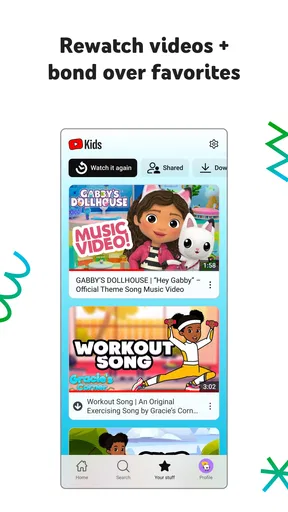
Our Review of YouTube Kids
 Analysis by Appyee
I see YouTube Kids as a useful, deliberately narrower way to give children access to video without handing them the full sprawl of regular YouTube. That distinction matters: it can make independent browsing feel more manageable, but it does not replace an adult’s judgment or attention. I would recommend it as a shared family tool, especially for short viewing sessions, rather than treating any child-focused video app as a set-and-forget babysitter.
Where a separate kids’ app helps
With regular YouTube, a child may move quickly from one clip to recommendations and unfamiliar topics. A dedicated kids’ experience creates a simpler starting point, with a child-oriented layout and content organized for younger viewers. That can reduce the friction of finding a suitable video when a parent is nearby, and it gives children a more approachable place to browse as they learn to make choices for themselves.
The app comes from Google LLC and is free, with an Everyone age rating. Those details make trying it straightforward, but they should not be confused with a guarantee that every video will suit every child. A preschooler and an older child can have very different ideas of what is interesting, calming, or appropriate, so I would still start by exploring together and checking how the experience fits your household.
Useful in ordinary family routines
One realistic use is a parent preparing dinner while a child watches a brief selection of familiar videos within sight or earshot. I would choose the viewing period in advance, agree on what the child can watch, and use the app’s controls to help keep the session bounded. That works better than handing over a device with no plan, particularly when the child tends to keep watching once a clip ends.
For a car ride or a waiting room, the app can also offer a focused option when a child needs something to do. I would pick content before the busy moment rather than expecting a young child to navigate calmly while everyone is in a hurry. If the device will be used away from a reliable connection, check playback availability beforehand; do not assume every video will be ready to play offline.
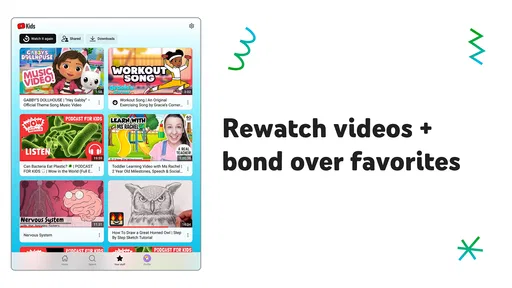
Another helpful habit is to treat watching as a conversation starter. A science clip, song, or story can lead to a question that is more valuable than simply letting the next video run. I find that this approach makes video feel less like background noise and gives a parent a chance to notice whether the material is actually holding the child’s interest.
What the controls can—and cannot—do
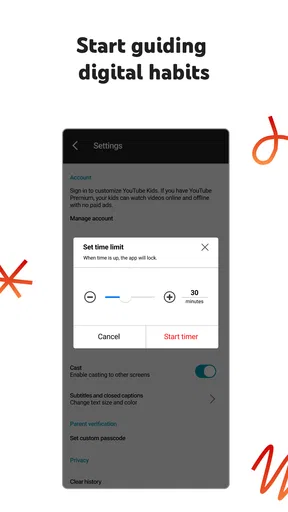
Parental controls are most useful when they are part of a routine. A timer can help signal that screen time is ending, while blocking a video or channel can respond to something a parent does not want the child to revisit. I would review these choices occasionally, because children’s interests change and a rule that made sense earlier may no longer match what the family wants.
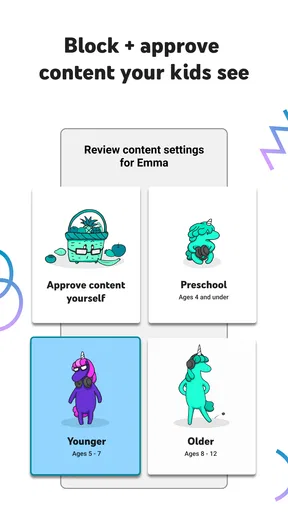
Age-based settings can also help shape the experience, but I would regard them as a starting point, not a precise reading of a child’s maturity. Children of the same age can react differently to fast editing, loud music, or themes that seem harmless to an adult. Watching a few selections together is a practical way to decide whether the chosen setting feels right.
There is a trade-off in any filtered video service: a curated environment can reduce exposure to unsuitable material, yet automated systems and review processes cannot anticipate every family’s preferences. If a video feels wrong, using the available feedback tools and blocking options is more useful than assuming the app will never surface another borderline choice. For young children, I would keep the device within reach and check in rather than relying on filters alone.
How it compares with regular YouTube
Compared with the standard YouTube app, the main advantage here is a more child-focused browsing environment. Regular YouTube may suit older viewers who need its broader range or want to follow specific creators, but that breadth can be a drawback when a young child is exploring without help. The kids’ app is the more sensible first stop for families who want a narrower space and controls designed around parental involvement.
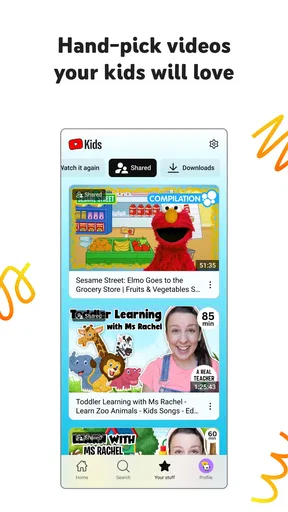
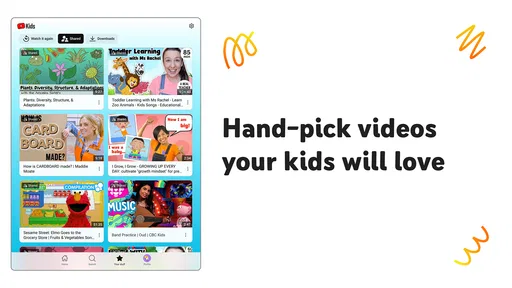
On the other hand, a parent who wants to select every item personally may prefer to make a short playlist or choose videos together in a general video app. That gives the adult more direct control over the exact viewing queue, though it also asks for more preparation. Neither approach is automatically best: the dedicated app is convenient for guided browsing, while hand-picking content makes sense when a child has particular sensitivities or a parent wants a very specific selection.
It is also worth remembering that a familiar brand or a child-friendly interface does not make every viewing session educational. Some clips are simply entertainment, and that can be perfectly fine when the family is comfortable with it. I would use the app to make age-conscious choices easier, not as a promise that every minute will be enriching.
Who will get the most from it
I think the app is best suited to families with younger children who want a simpler place to discover videos and whose adults are willing to set boundaries and check in. It can be especially convenient when a child already enjoys songs, stories, or basic learning videos and a parent wants to avoid sending them directly into the broader video environment.
It may be a poor fit for a household that expects filtering to remove the need for supervision, or for a child who becomes distressed by recommendations, autoplay-like viewing habits, or the transition away from a screen. In those cases, choosing a few videos in advance, watching together, or skipping video apps for that moment may be the calmer option. The right choice depends less on the app’s label than on how a particular child responds to it.
Popularity and practical expectations
The app has an average rating of 4.2 from around 3.3 million ratings, with roughly 88,000 written reviews and over 500 million installs. Those figures suggest that many families have tried it, but popularity does not tell me whether its content and controls will suit an individual household. I would use other parents’ experiences as context, then judge the app by trying its settings and browsing habits with my own child.
It has been available since February 23, 2015, and it remains a free entertainment app. That makes it easy to consider without a purchase decision, but the more important commitment is the time needed to set expectations: decide when viewing is allowed, establish how sessions end, and talk about what to do if a video seems strange or upsetting. A little preparation can make the app’s tools more useful than simply installing it and handing over the device.
A colorful interface with limits worth respecting
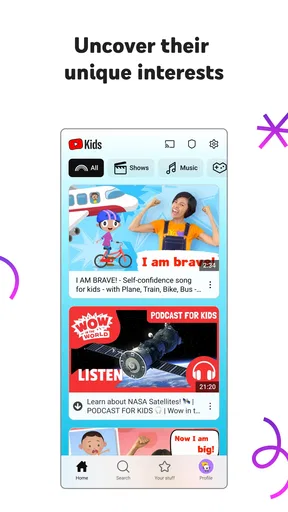
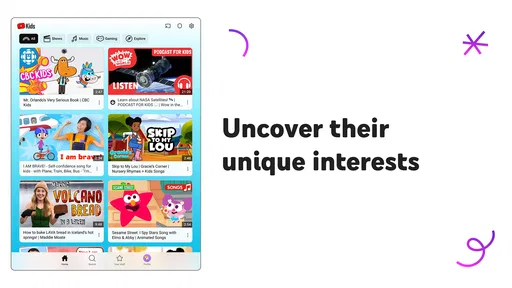
First things first, the interface of YouTube Kids is super colorful and easy to navigate. It’s clearly designed with children in mind. Unlike the regular YouTube app, which can be overwhelming even for adults, this one keeps it simple. The icons are large, and the categories are straightforward, making it a breeze for kids to find what they’re interested in.
There are four main sections: Shows, Music, Learning, and Explore. Each section is filled with content that’s appropriate for young audiences. I loved how the app encourages exploration while ensuring the content is safe. You can almost see the gears turning in their little heads as they dive into educational videos or bop their heads to catchy tunes.
Parental Controls
Now, let’s talk about parental controls because, let’s face it, we need them. The app offers some seriously robust options. You can set a timer to limit how long your kids can watch, and you even have the ability to block certain videos or channels. It’s like having a digital babysitter that you can trust.
One feature that stood out to me was the ability to customize the experience based on the age of your child. You can choose from options like preschool, younger, or older. This ensures that the content they’re consuming is appropriate for their developmental stage. It’s as if the app grows with your child!
Content Quality
When it comes to content quality, I was pleasantly surprised. The app boasts a variety of videos from popular kids' shows to educational content. Whether your child is into dinosaurs, science experiments, or nursery rhymes, there’s something here for them. It’s like having an entire library of content at your fingertips, without the worry of them clicking on something they shouldn’t.
One thing I noticed is that the app continuously updates its content, so there’s always something new and exciting for the kids to discover. It keeps them engaged and learning, all while having fun.
Safe and Secure
Safety is a big deal, and YouTube Kids takes it seriously. The app uses a combination of automated filters, user feedback, and human review to keep the content appropriate. While no system is perfect, I felt a sense of security knowing that there are multiple layers of protection in place.
They’ve also made it easy to provide feedback if you come across something that doesn’t seem right, which means they’re actively working to improve the user experience. It’s reassuring to know that they’re not just sitting back, but are constantly striving to make the app better.
Final Thoughts
All in all, YouTube Kids is a fantastic app for parents who want to give their kids a safe and enriching online experience. It’s intuitive, fun, and packed with content that kids will love. Plus, the parental controls give you peace of mind, which is priceless.
Whether you’re looking to entertain or educate, this app has got you covered. If you haven’t checked it out yet, I recommend downloading it and seeing how it fits into your family’s routine. It’s like having a kid-friendly corner of the internet right in your pocket!
Privacy and Permissions
See what permissions an app requests and how it handles your data.
- Identity
- find accounts on the device
- Contacts
- find accounts on the device
- Photos/Media/Files
- read the contents of your USB storage, modify or delete the contents of your USB storage
- Storage
- read the contents of your USB storage, modify or delete the contents of your USB storage
- Microphone
- record audio
- Wi-Fi connection information
- view Wi-Fi connections
- Other
- view network connections, measure app storage space, full network access, run at startup, draw over other apps, prevent device from sleeping, read Google service configuration
Verdict
Strengths of YouTube Kids
- Kid-friendly content filtering
- Simple and intuitive interface
- Parental control features
- Customizable profiles for each child
- Offline video access available
Limitations of YouTube Kids
- Limited content for older kids
- Ads can be distracting
- Occasional inappropriate content
- Requires internet for streaming
- No direct content upload option
Other Releases by Google LLC
View All
Google Calendar
Productivity4.6

Google Messages
Communication4.6

Tools4.0

Google TV
Video Players & Editors3.9
Similar Picks in This Category
View All
Google Play Games
Google LLC3.9

Netflix
Netflix, Inc.4.8

Disney+
Disney4.4

Prime Video
Amazon Mobile LLC4.7

Steam
Valve Corporation3.2

PlayStation App
PlayStation Mobile Inc.3.5
You May Also Like
View All
Frequently Asked Questions
What is YouTube Kids?
YouTube Kids is a family-friendly version of the popular video platform designed specifically for children. It offers a safer online experience by filtering content to ensure age-appropriate videos. The app provides parental controls, allowing parents to limit screen time, set content filters, and customize the viewing experience to suit their children's needs.
Is YouTube Kids safe for my child?
YouTube Kids implements various safety measures to create a secure environment for children. It uses automated systems to filter out inappropriate content and offers parental controls to further customize accessibility. However, no system is foolproof, so parents are encouraged to monitor activity and use the app’s settings to restrict content as needed.
How can I control what my child watches on YouTube Kids?
Parents can easily manage what their children watch on YouTube Kids by utilizing the built-in parental controls. These controls allow you to set screen time limits, block specific videos or channels, and choose content based on age categories. Additionally, parents can review watch history to ensure the content aligns with their expectations.
Does YouTube Kids offer educational content?
Yes, YouTube Kids offers a wide range of educational content tailored for children of different age groups. The app includes videos on science, math, language, and more. Parents can select content based on educational value and even create playlists to help guide their children’s learning journey while keeping it fun and engaging.
Can I use YouTube Kids offline?
YouTube Kids allows users to download videos for offline viewing, making it convenient for travel or when internet access is limited. Parents can select and download specific videos in advance, ensuring that children have access to their favorite content without needing a live internet connection.
